Source Code and setting in client receiver.
Inbound IDoc Posting Function Module
In the receiving system, create a function module Z_IDOC_INPUT_ZYZSO_MT using SE37. Below, I have described the logic for the same.
Add Include MBDCONWF. This include contains predefined ALE constants. Loop at EDIDC table
•Check if the message type is ZRZORDER. Otherwise raise WRONG_FUNCTION_CALLED exception
•Loop at EDIDD table
oAppend data from the segments to appropriate internal tables
oFor example: append data from ZRZSEG1 segment to the internal table of type ZCUSTOMERS
•Update the DDic tables from internal tables
•Depending on the result of the update, fill the IDoc status record (type BDIDOCSTAT) and append it to the corresponding table.
oStatus 53 => Success
oStatus 51 => Error
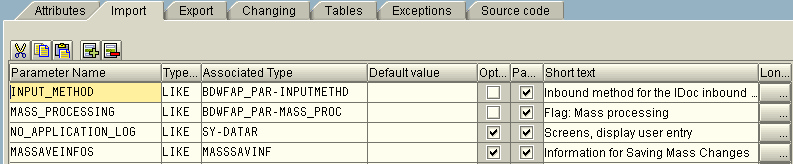
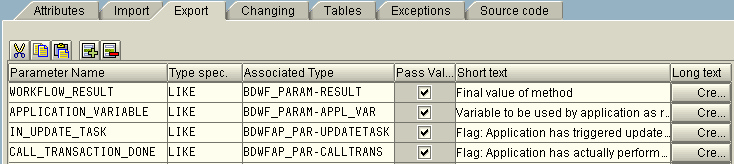
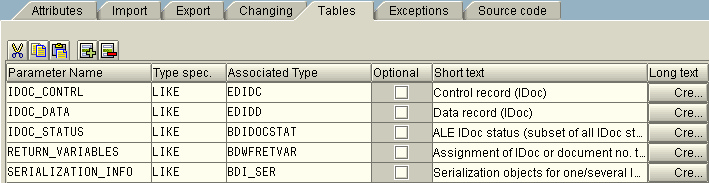
FUNCTION z_idoc_input_zyzso_mt. *"---------------------------------------------------------------------- *"*"Local interface: *" IMPORTING *" VALUE(INPUT_METHOD) LIKE BDWFAP_PAR-INPUTMETHD *" VALUE(MASS_PROCESSING) LIKE BDWFAP_PAR-MASS_PROC *" VALUE(NO_APPLICATION_LOG) LIKE SY-DATAR OPTIONAL *" VALUE(MASSAVEINFOS) LIKE MASSSAVINF STRUCTURE MASSSAVINF *" OPTIONAL *" EXPORTING *" VALUE(WORKFLOW_RESULT) LIKE BDWF_PARAM-RESULT *" VALUE(APPLICATION_VARIABLE) LIKE BDWF_PARAM-APPL_VAR *" VALUE(IN_UPDATE_TASK) LIKE BDWFAP_PAR-UPDATETASK *" VALUE(CALL_TRANSACTION_DONE) LIKE BDWFAP_PAR-CALLTRANS *" TABLES *" IDOC_CONTRL STRUCTURE EDIDC *" IDOC_DATA STRUCTURE EDIDD *" IDOC_STATUS STRUCTURE BDIDOCSTAT *" RETURN_VARIABLES STRUCTURE BDWFRETVAR *" SERIALIZATION_INFO STRUCTURE BDI_SER *"----------------------------------------------------------------------
INCLUDE mbdconwf. DATA : it_emp_data1 LIKE zcustomers OCCURS 0 WITH HEADER LINE, it_emp_data2 LIKE zsoheaders OCCURS 0 WITH HEADER LINE, it_emp_data3 LIKE zsoitems OCCURS 0 WITH HEADER LINE.
DATA : gen_data1 LIKE zcustomers, gen_data2 LIKE zsoheaders, gen_data3 LIKE zsoitems.
workflow_result = c_wf_result_ok.
DATA : counter TYPE int4.
* SELECT COUNT( * ) FROM zsach1 INTO counter. * counter = counter + 1.
LOOP AT idoc_contrl. IF idoc_contrl-mestyp NE 'ZYZSO_MT'. * RAISE wrong_function_called. ENDIF.
CLEAR gen_data1. CLEAR gen_data2. CLEAR gen_data3.
REFRESH it_emp_data1. REFRESH it_emp_data2. REFRESH it_emp_data3.
LOOP AT idoc_data WHERE docnum EQ idoc_contrl-docnum. IF idoc_data-segnam = 'ZYZSEG1'. CLEAR it_emp_data1. gen_data1 = idoc_data-sdata.
MOVE-CORRESPONDING gen_data1 TO it_emp_data1. APPEND it_emp_data1.
ELSEIF idoc_data-segnam = 'ZYZSEG2'. CLEAR it_emp_data2. gen_data2 = idoc_data-sdata.
MOVE-CORRESPONDING gen_data2 TO it_emp_data2. APPEND it_emp_data2.
ELSEIF idoc_data-segnam = 'ZYZSEG3'. CLEAR it_emp_data3. gen_data3 = idoc_data-sdata.
MOVE-CORRESPONDING gen_data3 TO it_emp_data3. APPEND it_emp_data3.
ELSE. MESSAGE 'ERROR' TYPE 'I'. ENDIF. ENDLOOP. ENDLOOP.
INSERT zcustomers FROM TABLE it_emp_data1. INSERT zsoheaders FROM TABLE it_emp_data2. INSERT zsoitems FROM TABLE it_emp_data3. *****
CALL FUNCTION 'EDI_DOCUMENT_OPEN_FOR_EDIT' EXPORTING document_number = idoc_data-docnum IMPORTING idoc_control = idoc_contrl TABLES idoc_data = idoc_data EXCEPTIONS document_foreign_lock = 1 document_not_exist = 2 document_not_open = 3 status_is_unable_for_changing = 4 OTHERS = 5.
CALL FUNCTION 'EDI_CHANGE_DATA_SEGMENTS' TABLES idoc_changed_data_range = idoc_data EXCEPTIONS idoc_not_open = 1 data_record_not_exist = 2 OTHERS = 3.
DATA t_itab_edids40 LIKE edi_ds40 OCCURS 0 WITH HEADER LINE. CLEAR t_itab_edids40.
t_itab_edids40-docnum = idoc_data-docnum. t_itab_edids40-status = '51'. t_itab_edids40-repid = sy-repid. t_itab_edids40-tabnam = 'EDI_DS'. t_itab_edids40-mandt = sy-mandt. t_itab_edids40-stamqu = 'SAP'. t_itab_edids40-stamid = 'B1'. t_itab_edids40-stamno = '999'. t_itab_edids40-stapa1 = 'Sold to changed to '. *t_itab_edids40-stapa2 = t_new_kunnr. t_itab_edids40-logdat = sy-datum. t_itab_edids40-logtim = sy-uzeit. APPEND t_itab_edids40.
CALL FUNCTION 'EDI_DOCUMENT_CLOSE_EDIT' EXPORTING document_number = idoc_data-docnum do_commit = 'X' do_update = 'X' write_all_status = 'X' TABLES status_records = t_itab_edids40 EXCEPTIONS idoc_not_open = 1 db_error = 2 OTHERS = 3.
ENDFUNCTION.
|
Inbound Settings
•Define Logical Systems – Transaction SALE (Please refer to Outbound Settings). You have to do it if SAP R/3 Receiver has a different IP.
•Assign Client to Logical System – Transaction SALE (Please refer to Outbound Settings). You have to do it if SAP R/3 Receiver has a different IP.
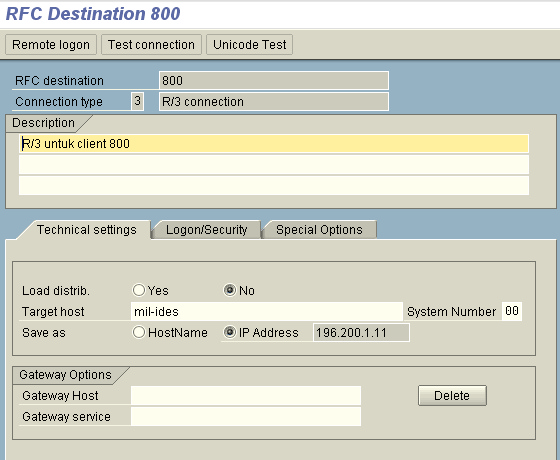
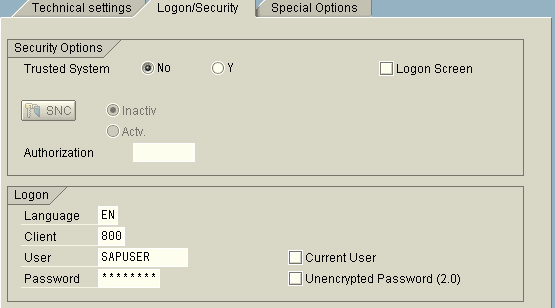
•Maintain RFC Destinations – Transaction SM59 (Please refer to Outbound Settings)
 |
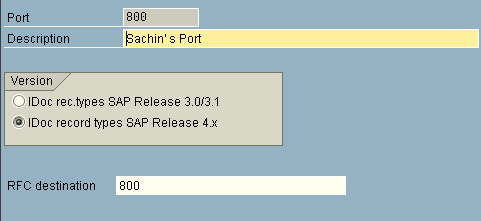
•Define Ports – Transaction WE21 (Please refer to Outbound Settings)
 |
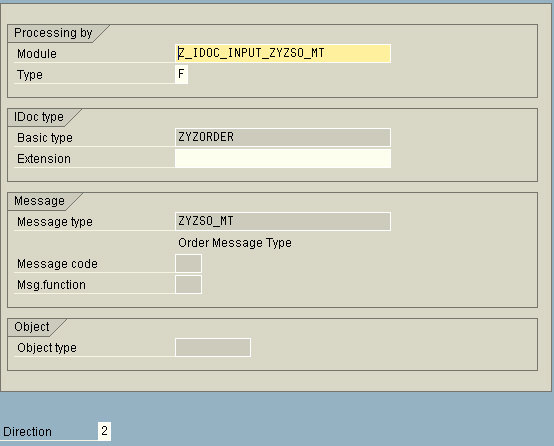
•Assign Function Module to Logical message – Transaction WE57
oCreate a new entry
oSpecify name of the Function Module as Z_IDOC_INPUT_ZYZSO_MT
oAlso, specify Type as F, Basic IDoc type as ZYZORDER, Message type as ZYZSO_MT and Direction as 2 (Inbound)
oSave the entry
 |
•Define Input method for Inbound Function Module – Transaction BD51
oCreate a new entry
oProvide Function Module name as Z_IDOC_INPUT_ZYZSO_MT
oSpecify the Input method as 2
oSave the entry
 |
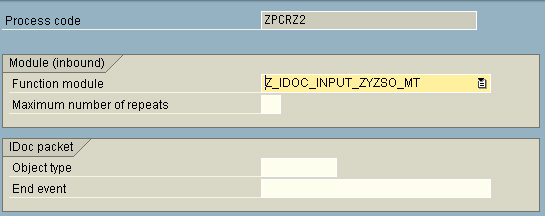
•Create a Process Code – Transaction WE42
oCreate a new Process Code ZPCRZ2
oSelect Processing with ALE Service
oChoose Processing type as Processing by function module
oSave the entry

oOn the next screen, select your function module from the list
oSave the changes
 |
oNow you will be taken to the next screen
oDouble-click on Logical message
oIn the Assignment to logical message, specify the message type ZYZSO_MT
oSave the changes

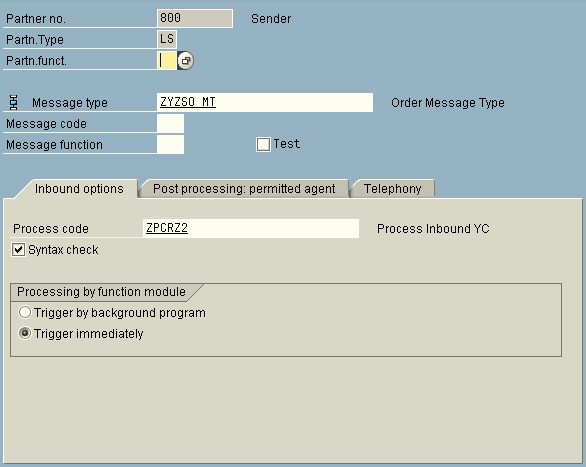
•Generate/Create Partner Profile – Transactions BD82/WE20 (Please refer to Outbound Settings)
oClick  in Inbound Parameters
oSpecify the message type ZYZSO_MT
oSpecify the process code ZPCRZ2
oSave the changes
 |