Objective |
Know how to create data transfer between 2 SAP Server using costomized IDOC |
Support |
|
Contributor |
Original Source :
Edited and Custom By : Yance Ciputra ( ycimut@yahoo.com ) |
ALE – Application Link Enabling is a mechanism by which SAP systems communicate with each other and with non-SAP EDI subsystems. Thus it helps integration of distributed systems. It supports fail-safe delivery which implies that sender system does not have to worry about message not reaching the source due to unavoidable situations. ALE can be used for migration and maintenance of master data as well as for exchanging transactional data.
The messages that are exchanged are in the form of IDocs or Intermediate Documents. IDocs act like a container or envelope for the application data. An IDOC is created as a result of execution of an Outbound ALE. In an Inbound ALE an IDOC serves as an input to create application document. In the SAP system IDocs are stored in the database tables. They can be used for SAP to SAP and SAP to non-SAP process communication as long as the participating processes can understand the syntax and semantics of the data. Complete documentation on IDOC is obtained by using transaction WE60.
Every IDoc has exactly one control record along with a number of data records and status records. Control record has the details of sender/receiver and other control information. Data records contain the actual business data to be exchanged while the status records are attached to IDoc throughout the process as the IDoc moves from one step to other.
Now, let us understand the ALE Configuration by means of an example scenario below:
The Scenario
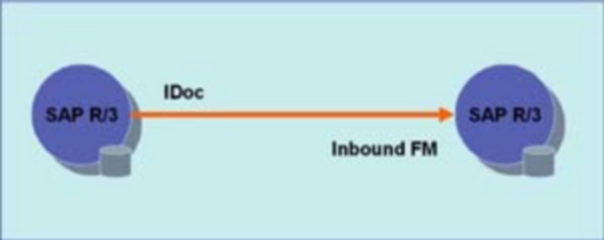
SAP ALE Scenario
Sender :
Server: 172.25.8.185
Client: 800
ReceiverSystem:
Server: 172.25.9.198
Client: 810
Latihan