Table is a part of Complex Types with global type tables but, Table is able to filled in and saved at server, which to be reference data type in ABAP program
Steps to make Table
1. Open t-code SE11
2. Activate Radio Button 
3. Insert Table's name, initiate with letter Z or Y

4. Click Button 
5. Fill in Short Description. Then fill in Delivery Class and Data Browser/Table View Maint. like picture below..

6. Activate tab of Fields. Then filled in Field and it's attribut like below.

Note :
• " MANDT " Field have to make to differentiate data by client, If there are more than one client in a server.
•If CheckBox Key is activated then the current field is mandatory and to be primary key.
•if initial CheckBox is activated, then current field have initial value appropriate with it's data type when to be append and inserted.
7. Fill in fields as requirement. If fields have same data type with in Data Element, then fill it in Data Element Coloums. If some fields have dfferent data type with SAP Data Element, then click button  to activate Data Type Coloum. If you finish, click button again to activate Data Element Coloums.

8. Click Button 
9. Package is filled to make Transportable Table into other client, but you don't need to fill it if practice only
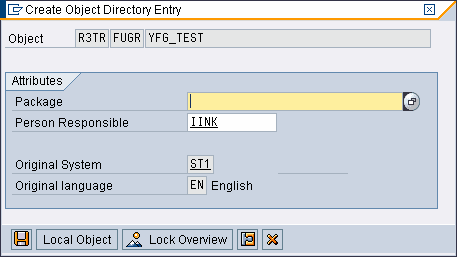
10. Click button to make Transportable Table into other client. Click button  for practice only.
11. Click button 
12. Fill in Data Class and Catagory Size like picture below.

13. Click button
14. Click button , to back to main menu.
15. Click button  to activate table.