Objective |
|
Transaction Code |
|
Support |
1.Open SE38
2.Copy Program "YPRACTICE_DIALOG_101" to "YPRACTICE_DIALOG_102"
3.Select All Object
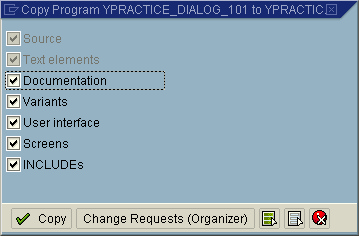
4.Change Program "YPRACTICE_DIALOG_102"
5.Open Goto > Attributes, and change Title with "102 - Create Button, Text Box and Label"
6.Modified Report Declaration
Before
REPORT ypractice_dialog_101 .
After
REPORT ypractice_dialog_102 .
7.Click " "
"
8.Double click " " to open screen 2000
9.Click " " to start design layout (Screen Painter)
10.Click " " and then click to screen
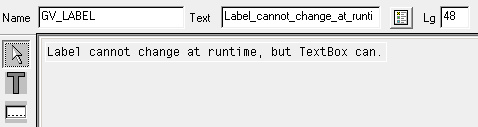
11.Set Label (Text Field) Name with "GV_LABEL" and Text with "Label_cannot_change_at_runtime,_but_TextBox_can." like this bellow
12.Click " " and then click to screen
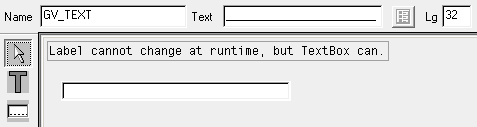
13.Set TextBox (Input/Output Field) name with "GV_TEXT" with length "30" like this bellow
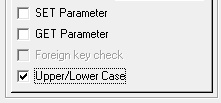
14.Double click " " and set uppercase/lowercase
15.Click " " and then click to screen
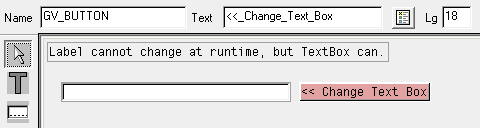
16.Set Button (PushButton) name with "GV_BUTTON" like this bellow
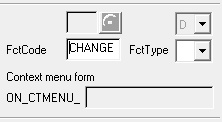
17.Double click " " and set Function Code with "CHANGE"
18.After that the button color changed to gray like this " "
"
19.Click " " to save the screen and then close the screen painter
20.Back to source code
21.Modified global variable
Before
*----------------------------------------------------------------------*
*GLOBAL VARIABLE DECRALATION
*----------------------------------------------------------------------*
DATA : ok_code LIKE sy-ucomm,
save_ok LIKE sy-ucomm.
After
*----------------------------------------------------------------------*
*GLOBAL VARIABLE DECRALATION
*----------------------------------------------------------------------*
DATA : ok_code LIKE sy-ucomm,
save_ok LIKE sy-ucomm.
DATA : gv_text(30) value 'TextBox'.
22.Modified module "USER_COMMAND_2000 input"
Before
*&---------------------------------------------------------------------*
*& Module USER_COMMAND_2000 INPUT
*&---------------------------------------------------------------------*
* text
*----------------------------------------------------------------------*
module USER_COMMAND_2000 input.
save_ok = ok_code.
CLEAR ok_code.
CASE save_ok.
WHEN 'BACK'.
LEAVE TO SCREEN 0.
WHEN OTHERS.
ENDCASE.
CLEAR ok_code.
endmodule. " USER_COMMAND_2000 INPUT
After
*&---------------------------------------------------------------------*
*& Module USER_COMMAND_2000 INPUT
*&---------------------------------------------------------------------*
* text
*----------------------------------------------------------------------*
MODULE user_command_2000 INPUT.
save_ok = ok_code.
CLEAR ok_code.
CASE save_ok.
WHEN 'BACK'.
LEAVE TO SCREEN 0.
WHEN 'CHANGE'.
IF gv_text = 'TextBox'.
gv_text = 'www.sap-interface.com'.
ELSE.
gv_text = 'TextBox'.
ENDIF.
WHEN OTHERS.
ENDCASE.
CLEAR ok_code.
ENDMODULE. " USER_COMMAND_2000 INPUT
23.Click "" and click " "
"
24.Select "REPS" and "DYNP"
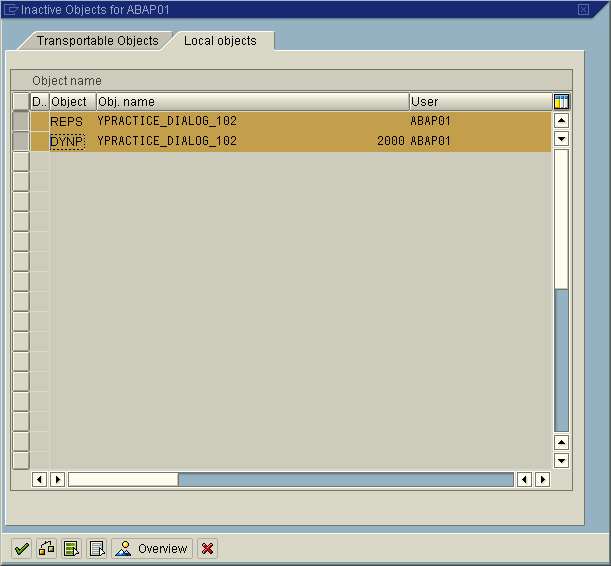
25.Click " " to activate the program
26.Test and Run program
28.Finished
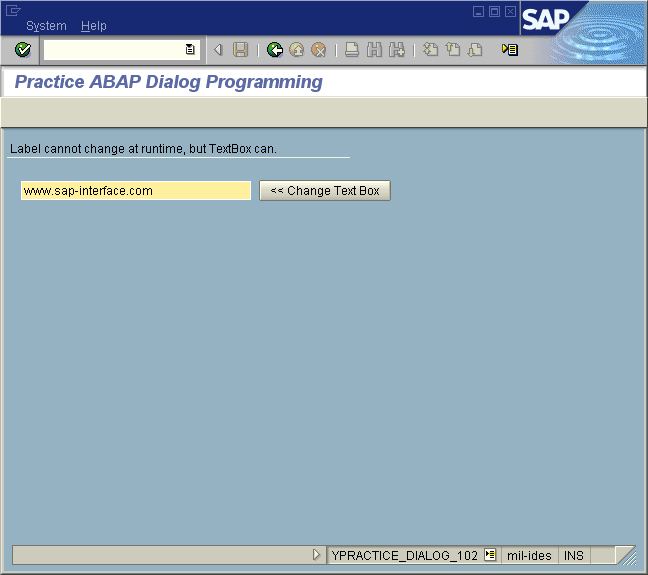
▪Screen 2000
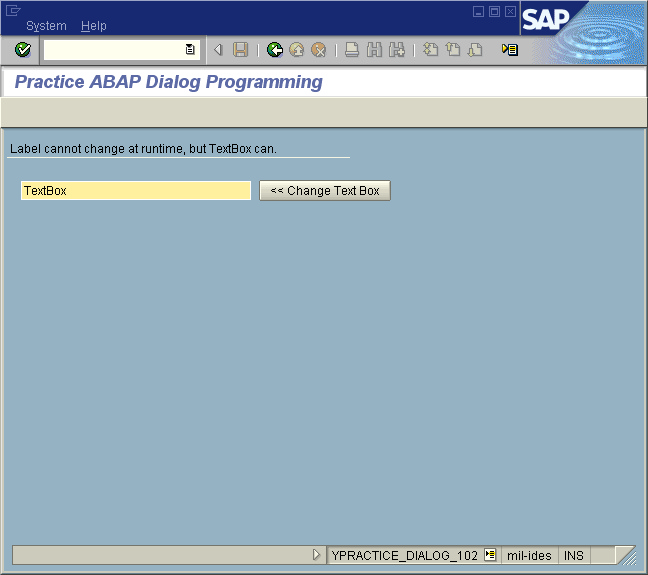
▪After button clicked